
Organizational Charts: 5 Types, When to Use Each, and How to Build One
Ask five people at a company who reports to whom and you’ll often get five different answers. That’s the problem an organizational chart solves.
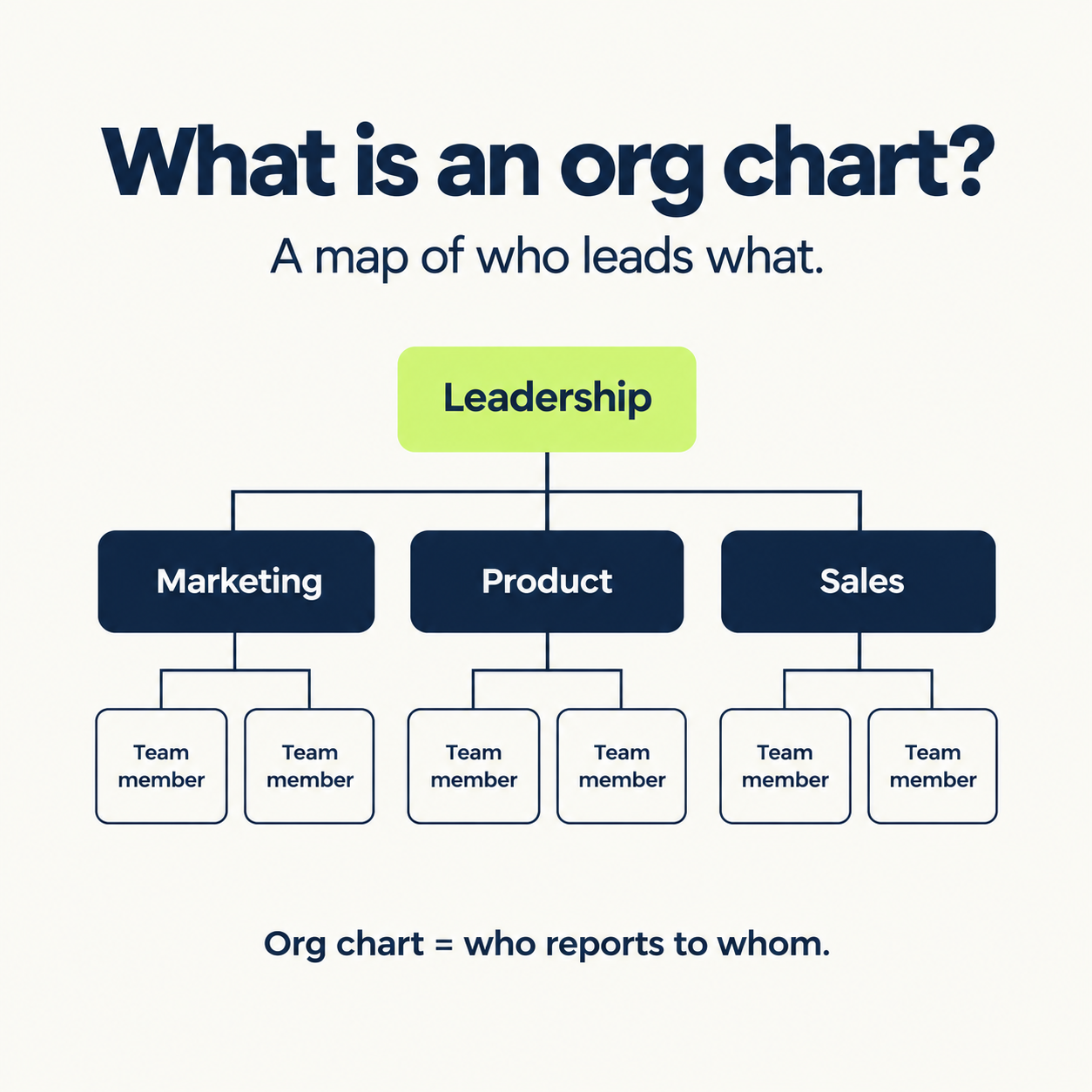
An org chart is a diagram of how a company is structured: who leads what, who reports to whom, and where each team fits. Done well, it takes about ten seconds to read. Done badly, it’s a wall of boxes nobody trusts.
This guide covers the five main types of org charts, how to pick the right one, how to build it step by step, and how to turn it into something people actually look at, including on LinkedIn, where “here’s how our team is structured” posts quietly perform well.
What Is an Organizational Chart?
An organizational chart (also called an org chart or organogram) is a visual map of an organization’s structure. It typically shows names, job titles, departments, and reporting lines, with leadership at the top and individual contributors below.
People use them to onboard new hires, plan restructures, spot gaps or overloaded teams, and make it clear who approves what.
The key idea is that a good org chart shows how decisions flow, not just who works there.
The 5 Main Types of Organizational Charts
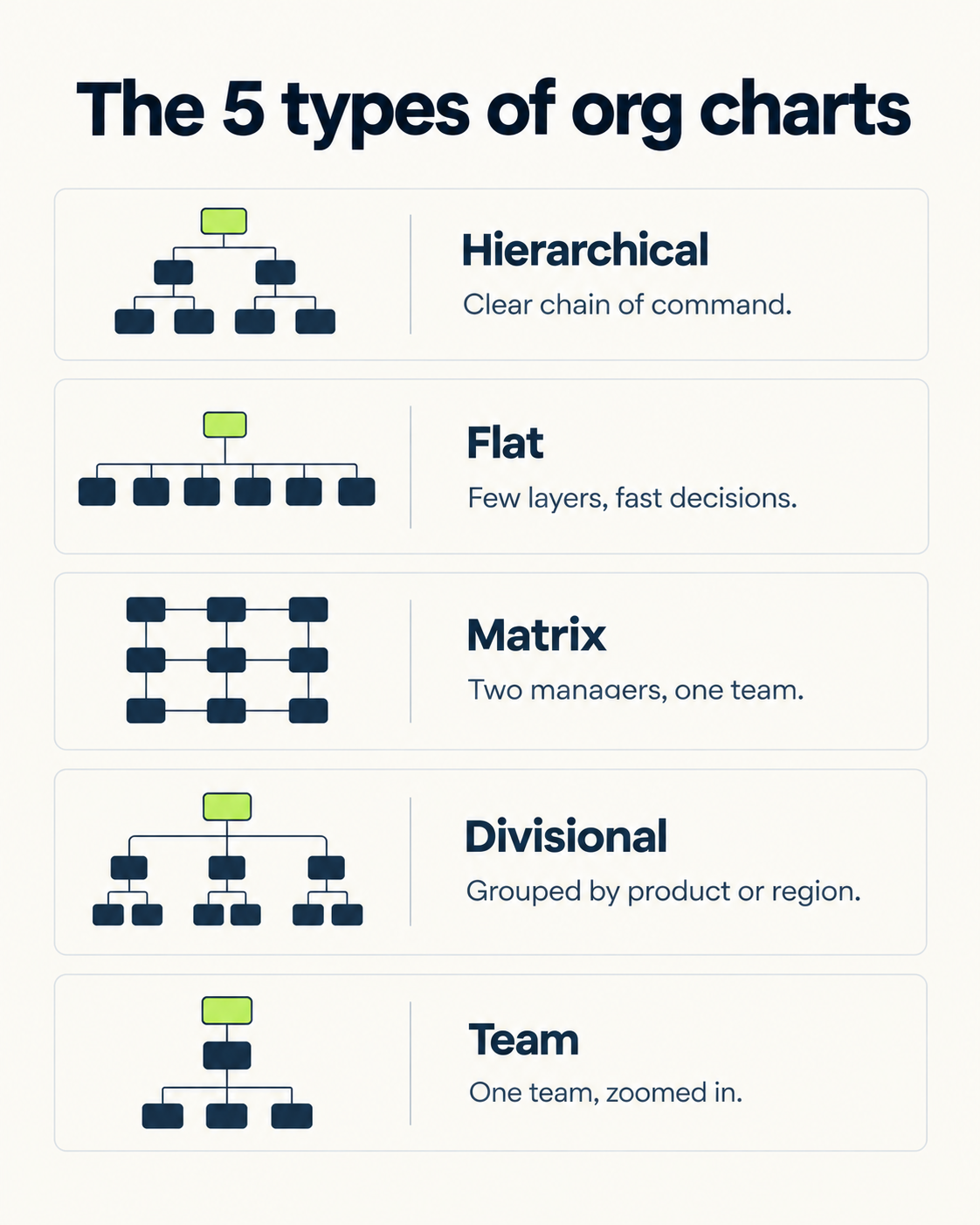
Most org structures fall into one of five types. Each one fits a different way of working.
1. Hierarchical
The classic pyramid. Clear chain of command, leadership at the top, individual contributors at the bottom. Best for large organizations with multiple layers of management and clearly defined reporting lines.
The catch: decisions can slow down as they travel up and down the layers.
2. Flat
Few or no layers of middle management. Most people report straight to leadership. Best for startups and small teams where speed and autonomy matter.
The catch: it’s hard to scale. What works at 12 people tends to strain at 80.
3. Matrix
People report to more than one manager, usually a functional manager (say, head of design) and a project manager. Best for project-based work where teams cross departments.
The catch: two bosses can mean unclear accountability when priorities conflict.
4. Divisional
The structure is grouped by product, region or market, and each division runs semi-independently with its own resources. Best for large companies with several product lines or geographies.
The catch: divisions can end up duplicating functions like marketing or HR.
5. Team or Department
A chart of one team rather than the whole company. Best when you need internal clarity fast without overwhelming people with the full picture.
The catch: it doesn’t show how that team connects to the rest of the organization.
How to Choose the Right Type
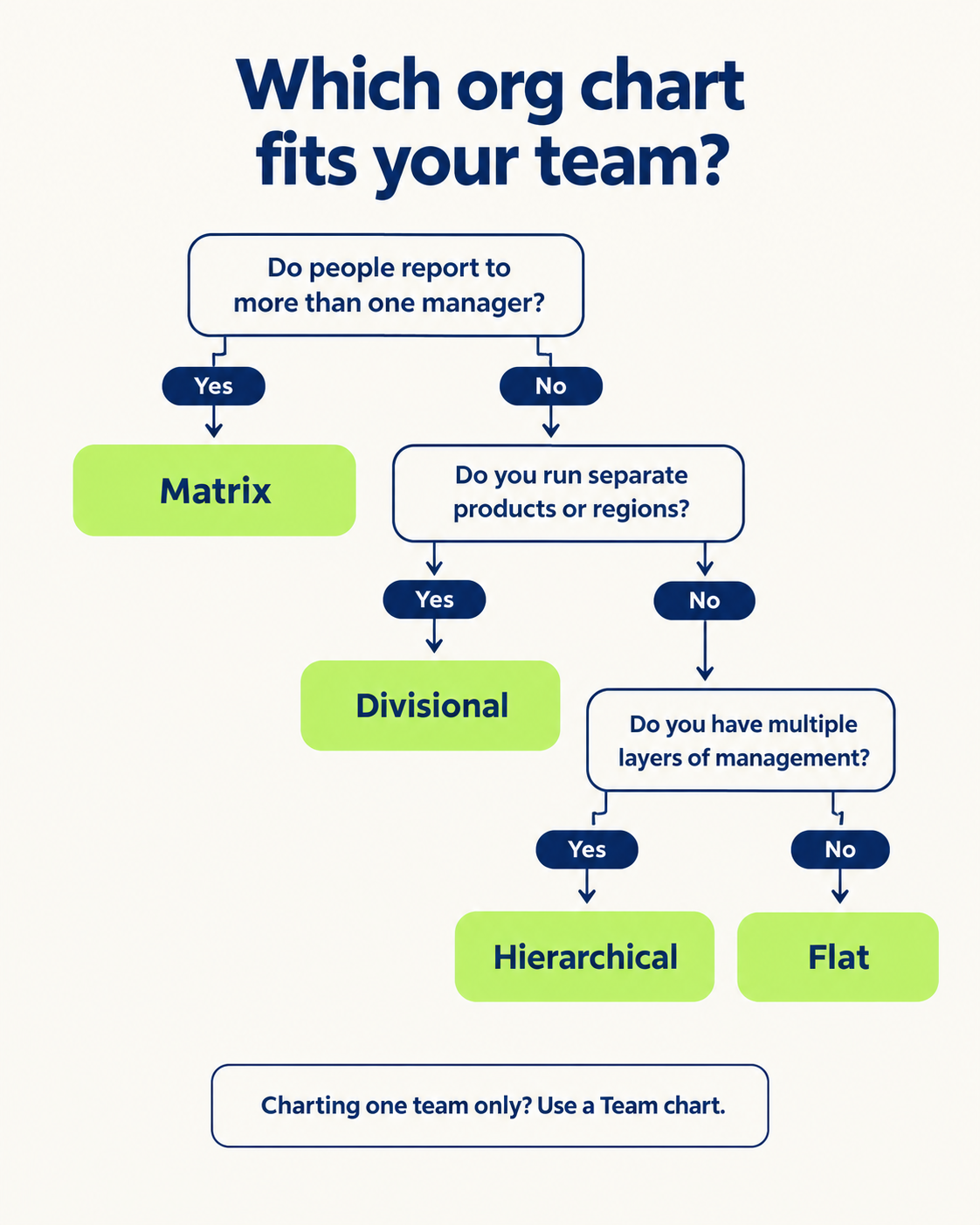
Company size is a poor guide. A 500-person company with autonomous product teams needs a different chart than a 500-person company run from the center. What matters is how your organization actually operates.
| Type | Best for | Works well when | Main drawback |
|---|---|---|---|
| Hierarchical | Large companies | Reporting lines are clearly defined | Can slow decisions |
| Flat | Startups, small teams | Speed and autonomy matter | Hard to scale |
| Matrix | Project-based teams | People work across departments | Accountability gaps |
| Divisional | Multi-product or multi-region | Each unit runs independently | Duplicated functions |
| Team | A single department | You need clarity fast | Misses the big picture |
A simple way to decide: draw the chart that matches reality, not the one that looks most impressive. If people genuinely report to two managers, a hierarchy will misrepresent how work gets done.
What a Good Org Chart Includes
Not every chart needs everything, so build for the people who will use it. A public team page needs less detail than an internal HR chart. As a baseline:
Names and specific job titles. “Senior Product Designer” is useful. “Lead” isn’t.
Departments or teams, so people can see how the company is grouped.
Solid lines for direct reporting.
Dotted lines for secondary relationships, used sparingly, because too many make the chart unreadable.
Photos or contact details for internal charts, especially at remote or larger companies.
How to Build One in 6 Steps
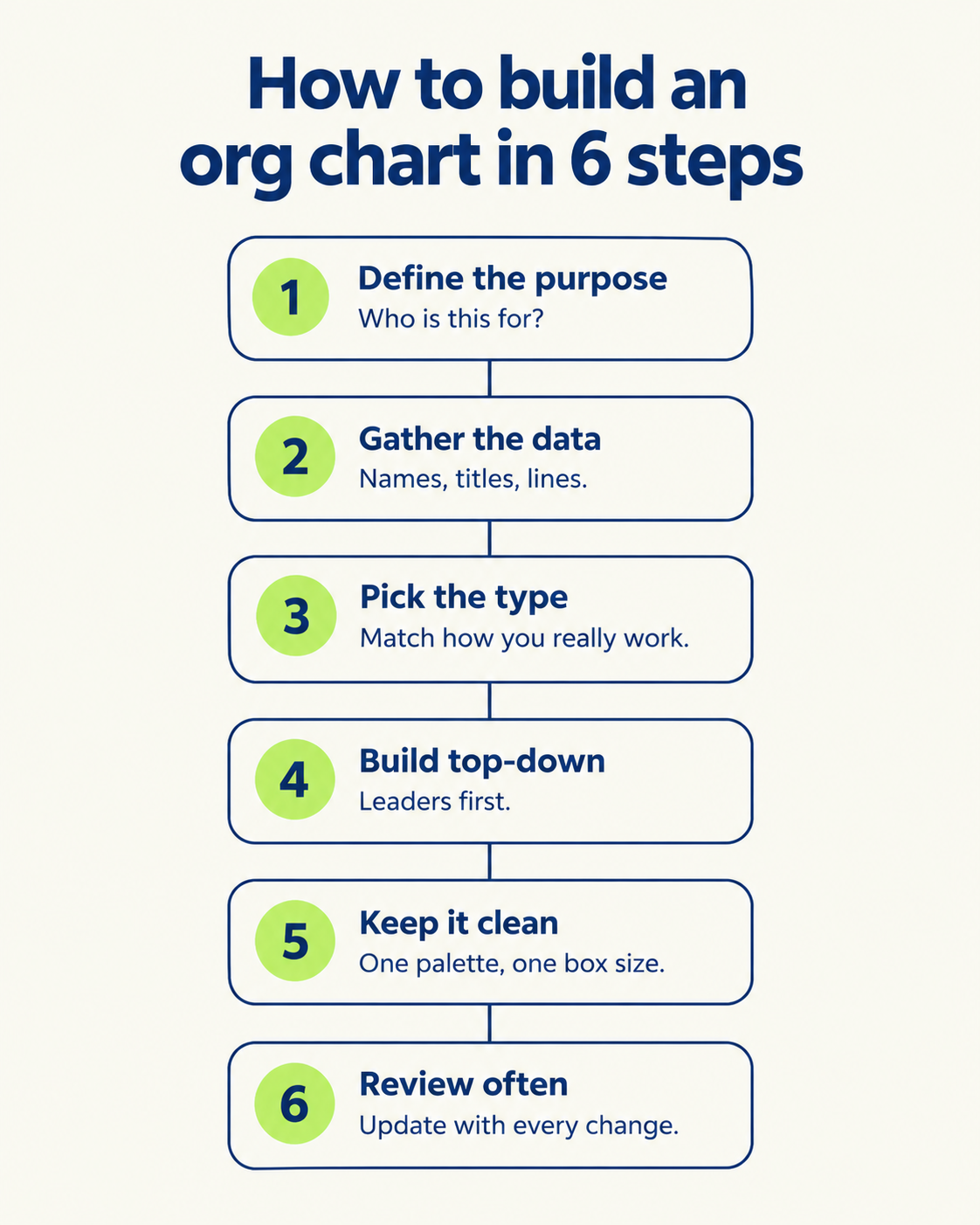
Define the purpose. An onboarding chart, a restructuring chart, and a website team page are three different documents.
Gather accurate information. Names, titles, departments, reporting lines, and any dotted-line relationships. For larger companies, get the data from HR.
Choose the right type. Match how the company actually works.
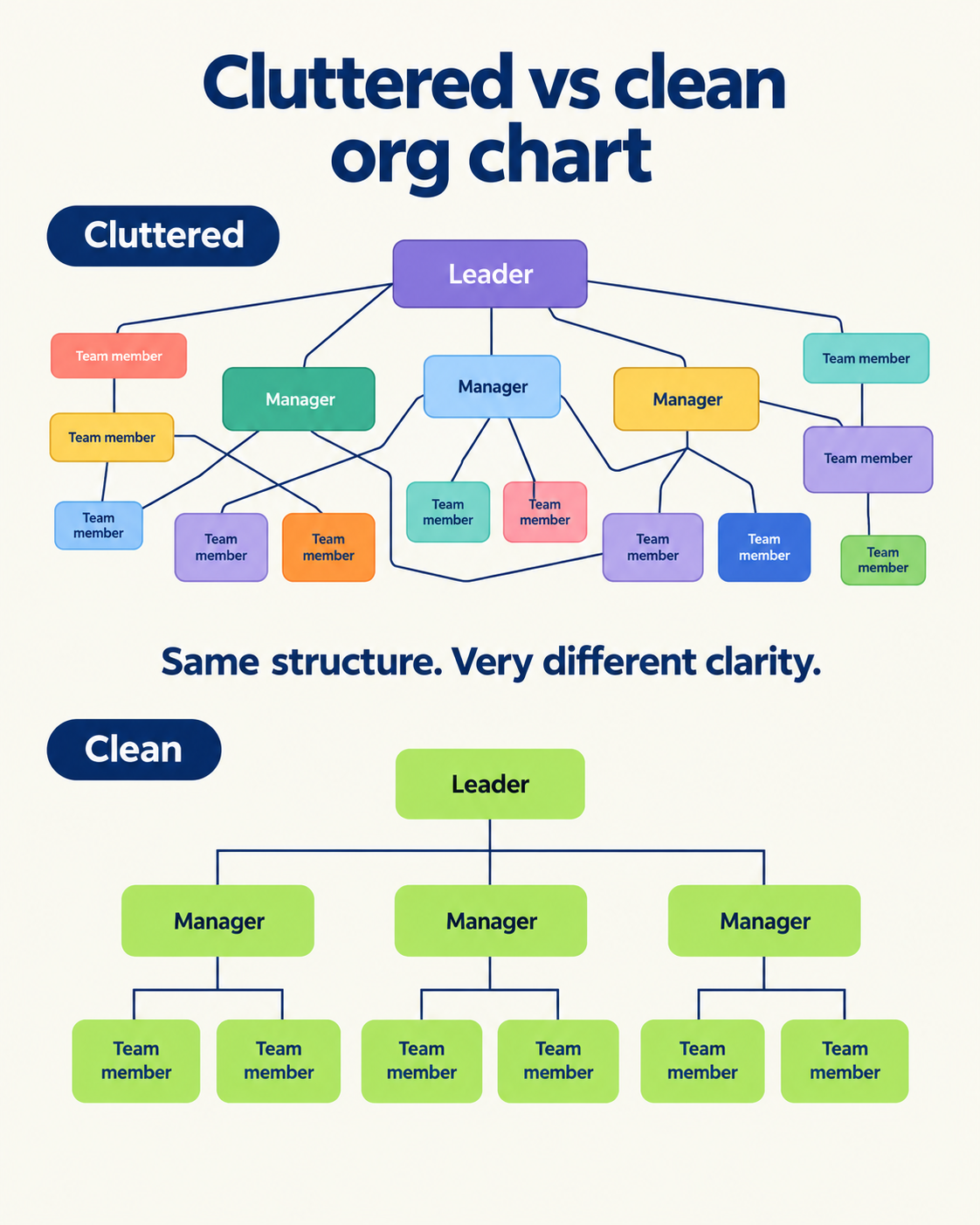
Build it top-down. Start with leadership, add a box per role, connect the lines, and group by department. If it gets crowded, split it into department-level charts.
Keep the design clean. Consistent box sizes, readable fonts, and a limited palette. Use color to separate departments, not to decorate.
Review regularly. Every hire, exit, or promotion is a reason to update. A chart that’s six months old is probably already misleading.
Real-World Examples Worth Knowing
Three well-known companies show how different structures can be:
Spotify’s squads, tribes and guilds. Spotify became known for a model where small autonomous teams (squads) group into tribes, with chapters and guilds linking people who share skills across teams. The goal was to cut bureaucracy as the company grew. It’s worth knowing that this was a snapshot of how they worked at one point, and that Spotify has said its structure has evolved since. Treat it as inspiration, not a template to copy.
Valve’s flat structure. The game developer is known for its famously flat setup, described in its employee handbook, where people choose what to work on rather than being assigned by managers. It’s a good example of how a chart can express culture, not just reporting lines.
Zappos and holacracy. Zappos publicly adopted holacracy, a system that distributes decision-making across self-organizing circles instead of a traditional management ladder. A holacracy chart looks nothing like a pyramid, with overlapping circles instead of lines and layers.
The lesson from all three is the same: the chart should reflect how the company really works. Copying a famous structure rarely works if your team doesn’t operate that way.
Org Chart Best Practices
Keep it simple. If the company-wide view is too complex, split it into department charts.
Be consistent. Same box sizes, same fonts, same colors throughout.
Design for your audience. Internal and public versions should be different.
Use dotted lines sparingly.
Make updates easy. If changing the chart takes three approvals, it won’t get changed.
Make separate versions when needed. A company-wide chart and a team chart do different jobs.
What Org Charts Can’t Tell You
Org charts are useful, but they only show the formal structure. They go out of date quickly after hires, exits and reorganizations. They don’t capture informal influence or how work actually flows between teams. They struggle to represent matrix structures accurately. And someone who works daily with three teams may appear under only one of them.
So treat the chart as a starting point for understanding a company, not the whole picture.
Turning Your Org Chart Into a LinkedIn Post
An org chart doesn’t have to live in an HR folder. A few posts that work well on LinkedIn:
A new team announcement: “Meet the team behind [product].”
A hiring post: show where the open role sits and who they’d work with.
A “how we’re structured” post: especially for startups explaining how they stay fast.
A restructure explainer: before and after, with the reason.
In each case the same rules apply: one clear focal point, minimal text, consistent styling. That’s the part that usually takes the longest, because a general design tool makes you rebuild the layout and re-match your brand every time.
The Takeaway
An org chart is only as good as its accuracy and its clarity. Pick the type that matches how your company really works, keep the design clean, and update it whenever the structure changes.
And when you want to share it, as a team announcement, a hiring post or a “here’s how we work” explainer, the design should help the point land, not hide it.
If you’d rather spend your time on the idea than the layout, Visly turns a single sentence into a polished, on-brand LinkedIn infographic in under 60 seconds, with your colors and fonts locked in from the start.