
How to Make a Brochure in 7 Steps (Plus How to Reuse It on LinkedIn)
A good brochure does one job: it gets someone to take the next step. Most bad ones try to do five jobs and end up doing none.
This guide walks through seven steps for making a brochure that people keep instead of tossing: starting with your goal, then copy, visuals, fold, design and print. At the end, we cover something most brochure guides skip, which is how to reuse the content so it keeps working after the print run is done.
Step 1: Start With the Reader and the Goal
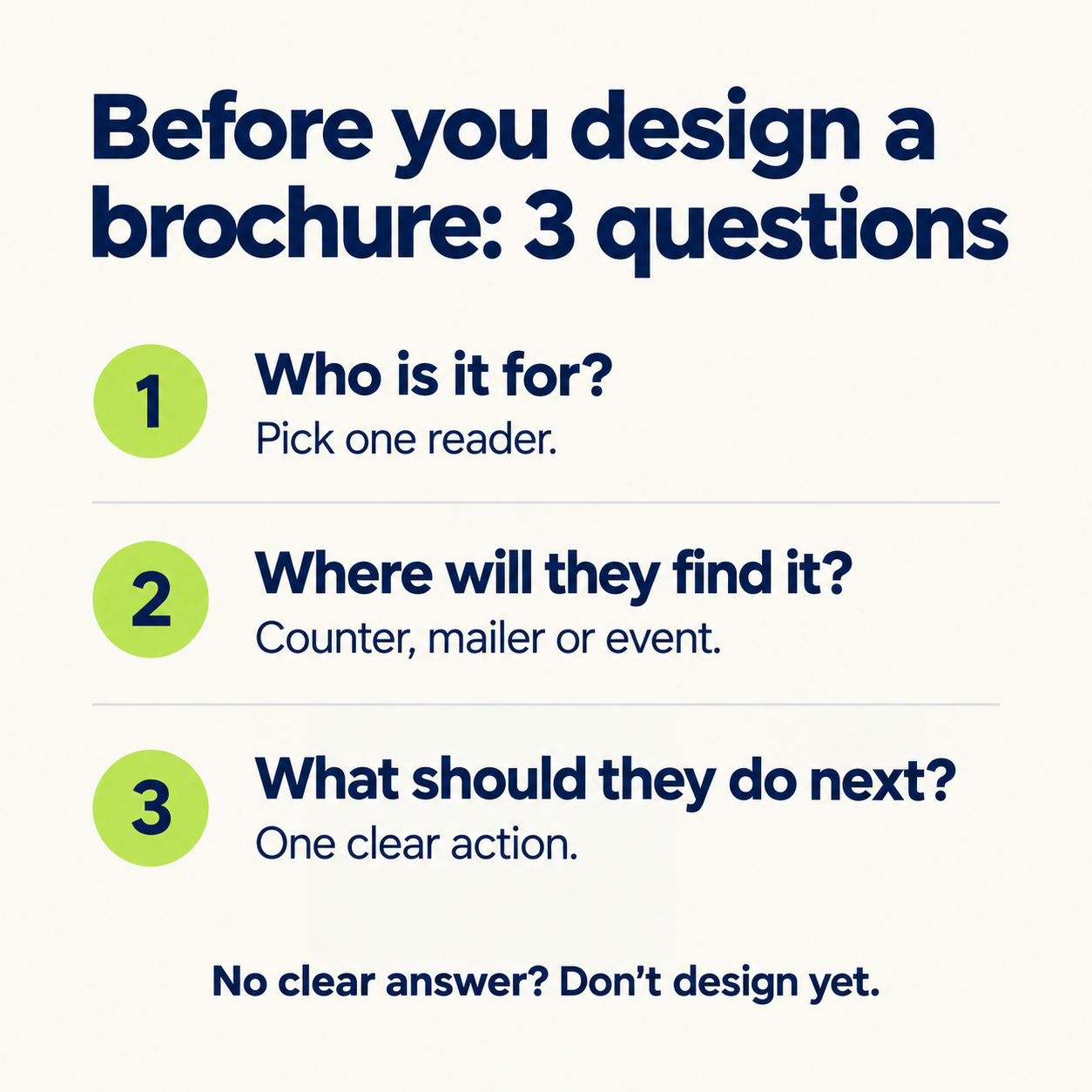
Before you open any design tool, answer three questions.
Who is this for? A brochure for hospital visitors, a brochure for investors, and a brochure for college applicants need different tones, even if the layout is the same.
Where will they find it? On a counter, in a mailer, at an event, or on a website? That affects the size, the paper, and how much text people will tolerate.
What should they do next? Call, visit, book, register, or buy. If you can’t state it in one sentence, the brochure isn’t ready to be designed.
Then outline it: the sections you need, the main point of each, any images you plan to use, and the call to action. A one-page outline saves hours later.
Step 2: Write the Copy First
Write the words before the layout. It’s much harder to fit copy into a design than to design around the copy.
A solid brochure usually covers:
The benefit. What does the reader get, and which problem does it solve?
Who you are. A short line on your mission or background, not a company history.
Proof. A testimonial, a case study, a number or an award.
Common questions. Answer the two or three objections you hear most.
Contact details. Website, phone and social handles.
One call to action. Clear, specific and easy to spot.
A few writing habits help a lot:
Break text into short paragraphs.
Use active voice.
Speak to the reader directly with “you.”
Cut anything that doesn’t help the reader decide.
Step 3: Plan Your Visuals
Visuals make a brochure easier to scan and easier to remember, but only if they have a job.
Logo. Use it prominently and carry its colors through the design.
Photos. Original or high-resolution photography beats generic stock. If you do use stock, choose images your competitors probably won’t.
Illustrations and icons. Good for explaining complex ideas and giving the brochure a distinct look.
Before adding any image, ask: does it give the reader value, does it relate to the message, and does it support the text, or is it just decoration? If it’s decoration, cut it.
Step 4: Choose the Fold
The fold shapes how people read, so pick it before you design.
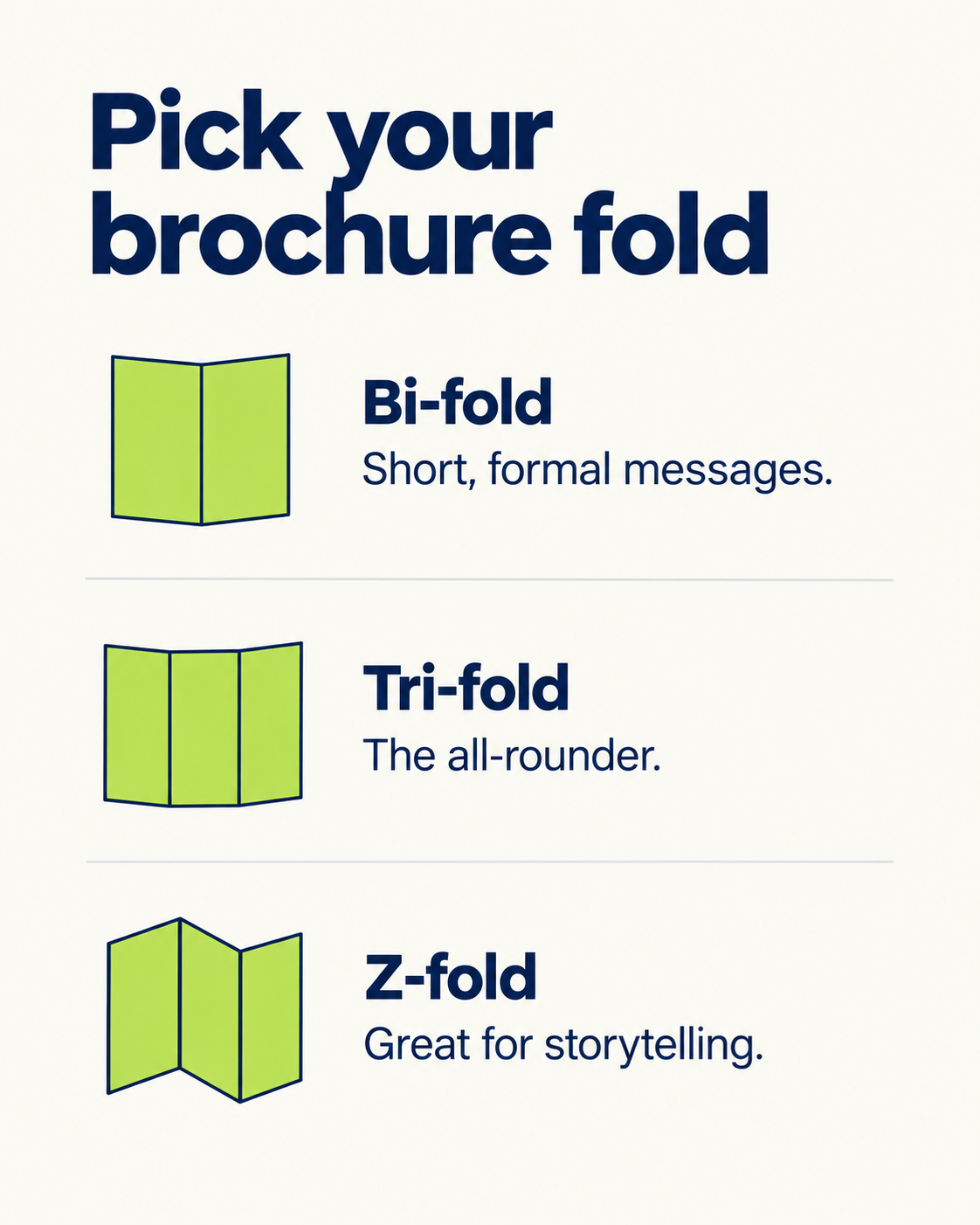
Bi-fold. One sheet folded in half, giving four panels. Best for short, focused messages and a more formal feel.
Tri-fold. One sheet folded in three, giving six panels. The most popular choice. Good for menus, programs and informational material.
Z-fold. Also six panels, but it unfolds like a zig-zag. Great for storytelling, where each panel reveals the next, like in real estate, travel and product catalogs.
There are other options too, such as gate folds, accordion folds, roll folds and half-folds. They look impressive, but they cost more and need more careful design, so use them when the format is part of the message.
Once you’ve picked one, make a rough paper mockup. Fold a sheet and sketch where each piece of content goes. It takes five minutes and catches most layout problems.
Step 5: Choose a Tool or Template
You don’t need to start from a blank page. Your options:
Professional print software (like Adobe InDesign) gives you the most control over color and print specs, but takes time to learn.
Browser-based design tools offer templates and drag-and-drop editing, and work well for most small teams.
Word processors are fine for simple, text-heavy layouts.
Collaborative design tools are strong for teamwork but need extra steps for print export.
Choose based on three things: your design experience, your deadline and how you’ll print. If you use a template, check that it fits your brand’s style and leaves room for your logo, contact details and call to action.
Step 6: Design It
A template is a starting point. As you customize, follow these habits:
Use clear headings and subheadings to break up the text.
Use bullet points for key information.
Use color blocks or boxes to highlight what matters.
Stay consistent with fonts, sizes and spacing.
Use white space. A crowded panel looks cheap and is hard to read.
Think about each panel’s role too:
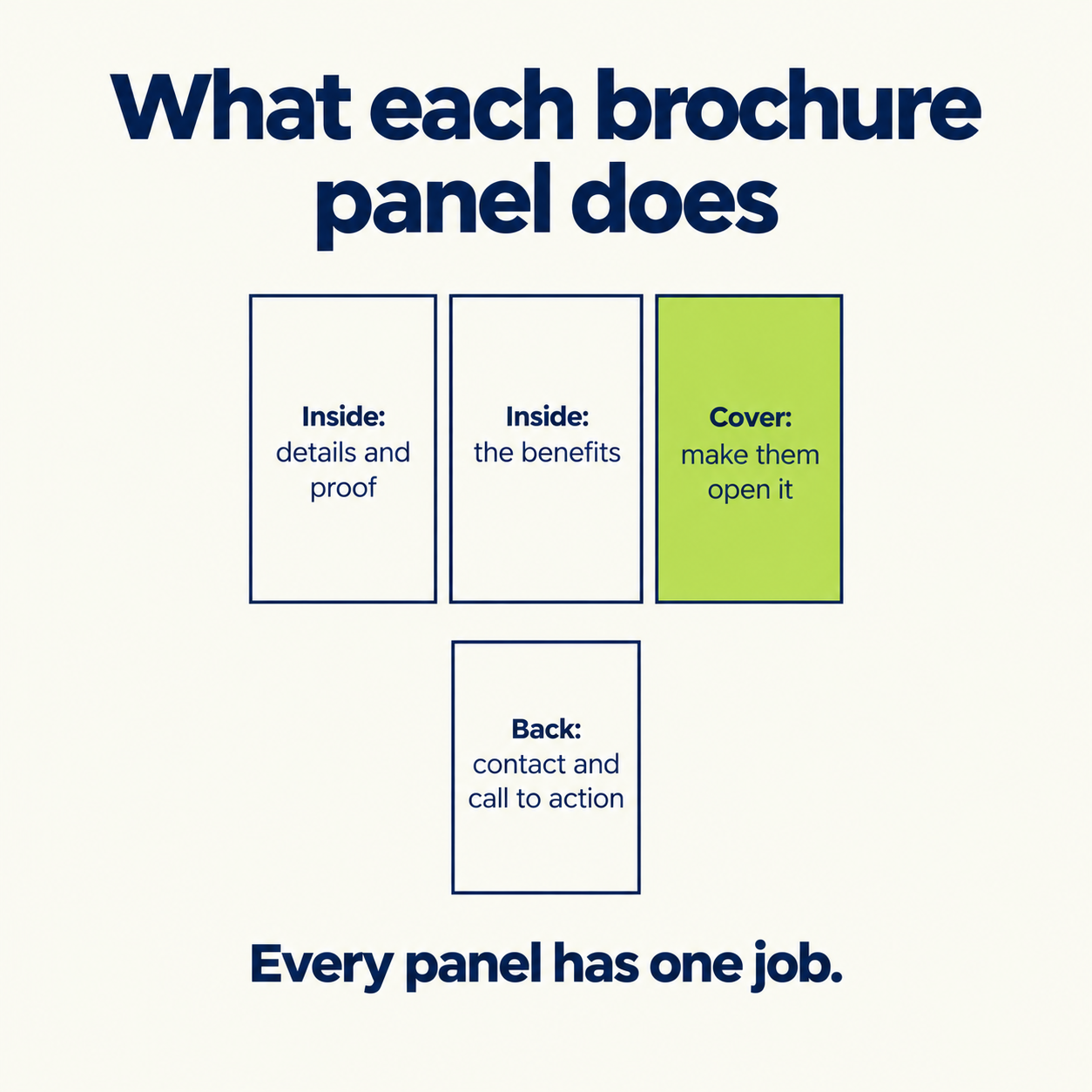
The cover has one job: make people open it. A strong image and a clear headline.
The inside panels carry most of the text, so keep them spacious and scannable.
The back panel is the place for contact details and the call to action.
This is where unity and emphasis come in. Pick a limited palette and two fonts, and make the call to action the strongest element in the layout.
Step 7: Print It Properly
Printing choices change how your design feels in the hand.
Paper finish:
Glossy makes colors and photos pop, but can be hard to read under bright light on text-heavy pages.
Matte feels more professional and works well with high-contrast designs.
Uncoated is easy to read and write on, which is useful if people will jot down details.
Recycled has a textured feel and suits brands that care about sustainability.
Print method:
Digital printing suits small runs and fast turnarounds.
Offset printing suits large quantities and delivers higher consistency.
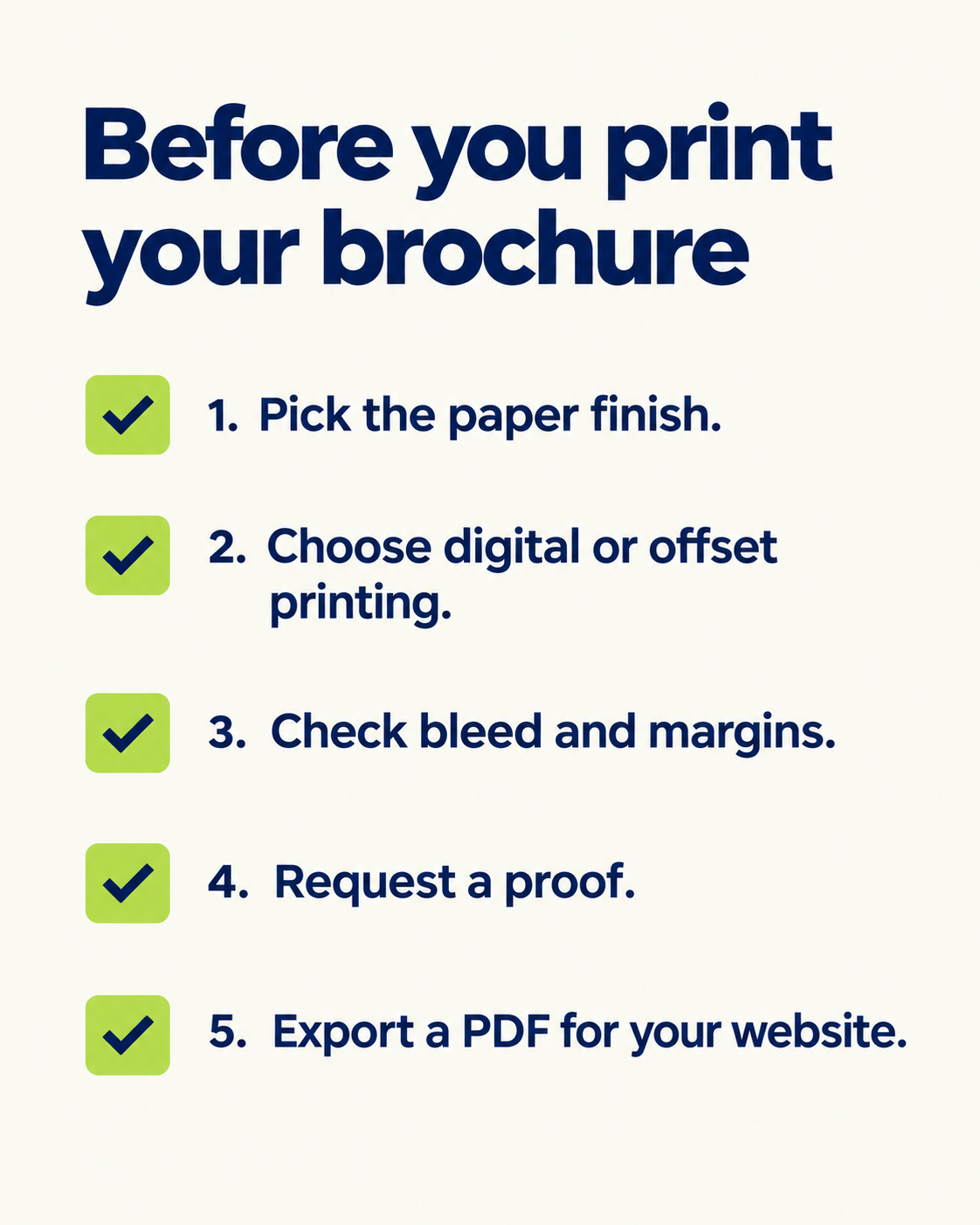
Before you send the file to print, check the printer’s specs for bleed, margins and color mode, and request a proof if the run is large. Most printers can handle double-sided printing. It’s also worth exporting a PDF version for your website, so the brochure works digitally too.
Common Brochure Mistakes
Trying to say everything. A brochure isn’t a website. Choose the most important points.
No clear call to action. If readers finish and don’t know what to do, the brochure failed.
Weak cover. If the front doesn’t earn a second look, the inside never gets read.
Too many fonts and colors. It makes the brochure look unprofessional.
Skipping the proof. Claims without evidence are easy to ignore.
Designing before writing. The copy ends up squeezed into the layout.
After Printing: Reuse Your Brochure Content on LinkedIn
Once a brochure is finished, you’ve already done the hard work: you have a clear message, a benefit, proof, answers to common questions and a call to action. Most people print it and stop there.
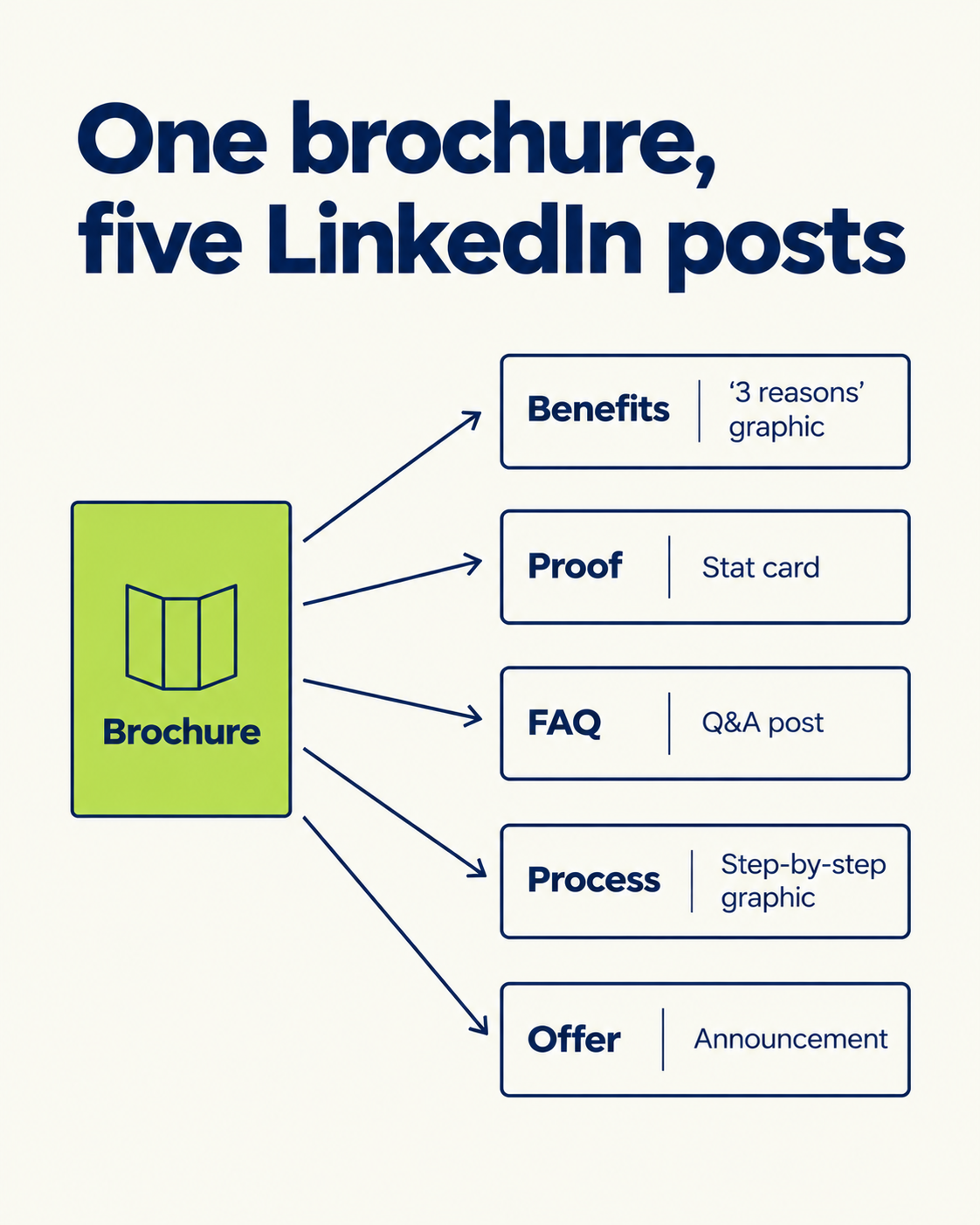
That content can keep working on LinkedIn. A brochure usually contains pieces that make strong posts:
The benefits section becomes a “3 reasons to choose us” graphic.
The proof becomes a stat card or a testimonial graphic.
The FAQ becomes a myth-vs-fact or Q&A post.
The process or steps becomes a step-by-step infographic.
The offer or event details become a simple announcement graphic.
Because the copy is already written and approved, the only work left is the design, which is the slow part when you’re doing it by hand. Describing each point in a sentence and getting a finished graphic back is a much faster route than rebuilding the layouts one by one.
The Takeaway
A good brochure comes from decisions made before the design: a clear reader, a clear goal and copy written first. Pick the right fold, give every panel a job and print with care.
Then don’t let the content sit in a stack of paper. The benefits, proof and steps you’ve already written can fuel weeks of LinkedIn posts.
If you’d rather spend your time on the message than the layout, Visly turns a single sentence into a polished, on-brand LinkedIn infographic in under 60 seconds, with your colors and fonts locked in from the start.