
5 Best AI Video Generators in 2026 (and When a Graphic Beats a Video)
Video is the format everyone says they should be making. Most people don’t, because it’s slow, it’s expensive, and it means being on camera.
AI video generators exist to remove those barriers. Describe an idea, paste a script or drop in a blog post, and you get a finished video in minutes.
But “best” depends on what you’re making. A tool that’s great at avatar training videos is the wrong tool for repurposing a blog post. This guide sorts five popular options by what they do best, so you can pick quickly. At the end, we cover the question most people skip: should this idea be a video at all?
How to Choose an AI Video Generator
Before the list, here’s what separates tools in practice:
Input type. Some start from a text prompt, some from a script, some from an existing article, some from a long video.
Editing control. Some give you a full editor after generation. Others hand you a finished clip and little else.
Voice and presenters. AI voiceovers and avatars vary a lot in how natural they sound.
Branding. Look for logo, color and font support, plus whether free plans add a watermark.
Output formats. Platforms want different shapes. Vertical, square and landscape all matter.
Test any tool with your own content before you commit. Demo videos always look good.
The 5 Best AI Video Generators
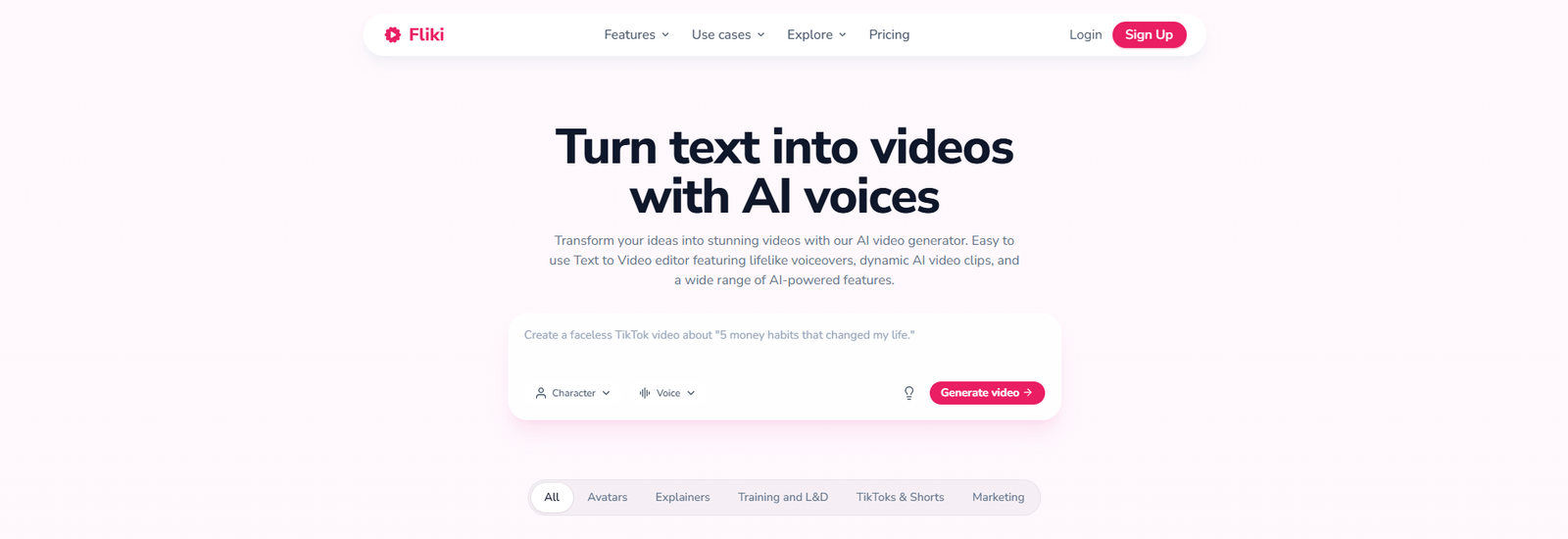
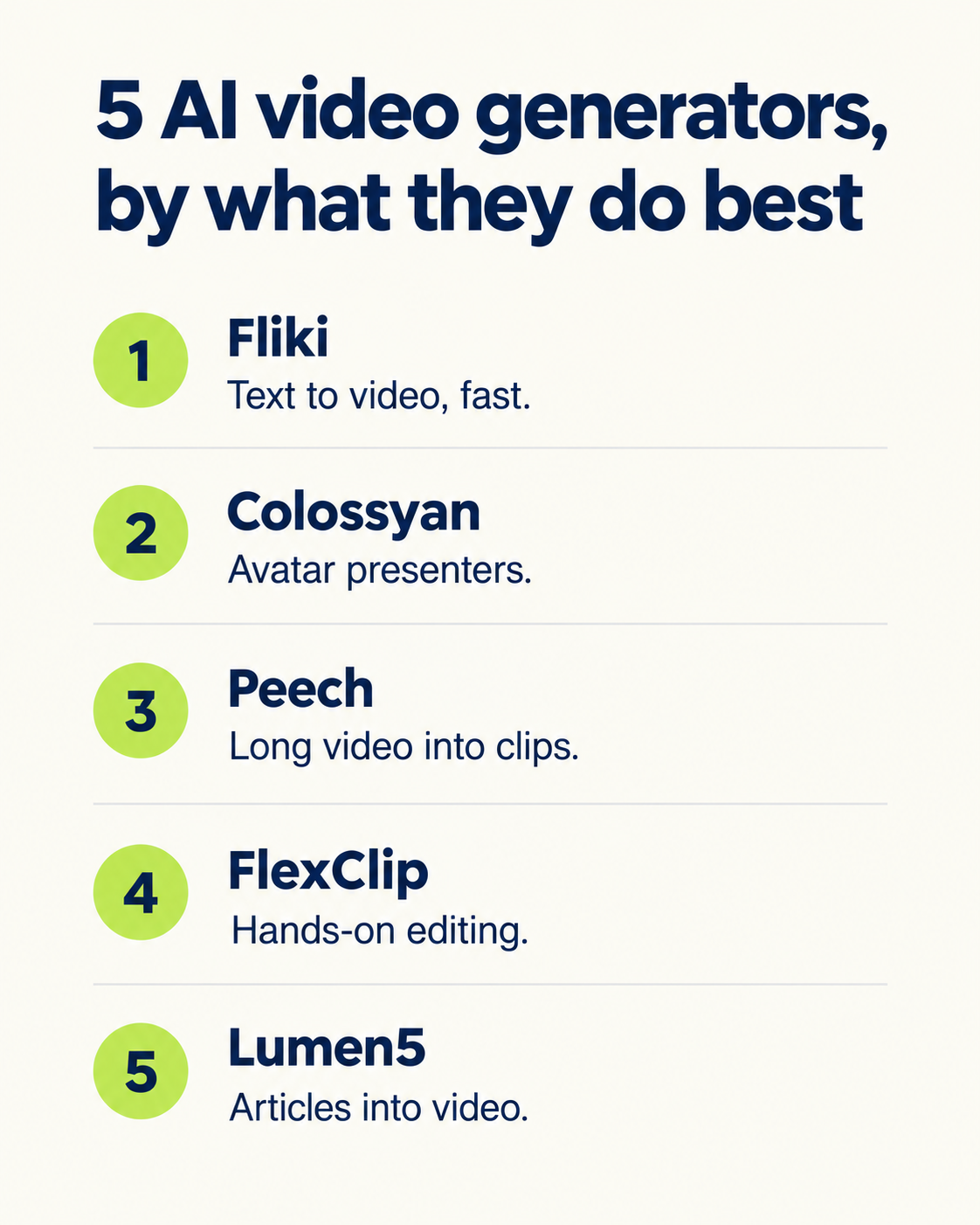
1. Fliki: best for text-to-video
What it does: You give Fliki a prompt or script, and it builds a video with stock footage, voiceover and music. It also drafts a script if you start from an idea.
Why it’s good: The editor lets you rearrange scenes, cut segments, revise the script and swap the soundtrack after generation, so you aren’t locked into the first draft.
Watch out for: The AI voiceover can sound synthetic, and subtitle placement has limited flexibility.
Best for: Beginners who want the fastest route from text to video.
2. Colossyan: best for avatars
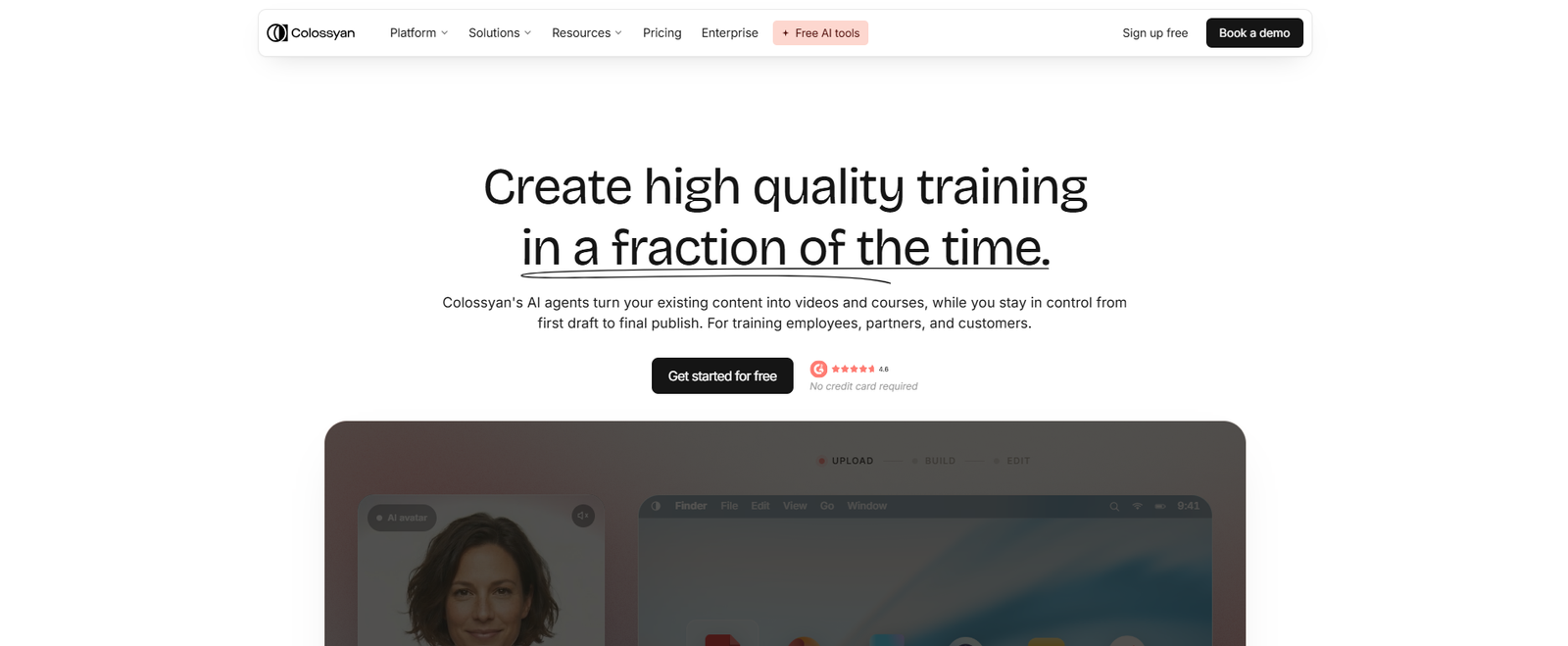
What it does: Colossyan turns scripts, PDFs, and slide decks into narrated videos with a presenter avatar. It offers a large avatar and voice library plus templates for branding.
Why it’s good: It’s well suited to training and explainer content where you’d otherwise need someone on camera. A pronunciation tool helps with product names and jargon.
Watch out for: The avatars and voices lean formal, which may not suit a casual brand. Custom avatars cost extra.
Best for: Businesses producing training, onboarding, or educational videos.
3. Peech: best for social clips
What it does: Peech takes a long video or a YouTube link and cuts it into shorter, branded clips in multiple aspect ratios, with captions, music, and text slides added.
Why it’s good: It’s built for repurposing. One webinar or podcast can become a batch of shareable clips for different platforms.
Watch out for: You have limited control over how the video is segmented, and auto-generated captions can stumble on unfamiliar terms or accents. Always proofread captions.
Best for: Social and content teams that already have long-form video.

4. FlexClip: best for editing
What it does: FlexClip is a drag-and-drop video editor with templates, text and effects controls, and AI generation for short clips.
Why it’s good: It’s the most hands-on option here. You can edit anything after generation, and the interface is approachable for non-editors.
Watch out for: Free plans add a watermark, and AI-generated visuals can be less relevant on lower tiers.
Best for: Creators who want control and are happy to make final tweaks themselves.
5. Lumen5: best for repurposing articles
What it does: Lumen5 converts a blog post or article URL into a short video, summarizing the key points across scenes with stock footage and music.
Why it’s good: If you already publish written content, it’s a quick way to get video from it without recording anything.
Watch out for: Free videos carry a watermark, and stock visuals don’t always match the text on screen. Expect to adjust some scenes.
Best for: Writers and marketers turning existing articles into video.
Other Tools Worth a Look
Synthesia and DeepBrain AI: Alternatives to Colossyan for avatar-led videos, with multilingual options. Check lip-sync and pacing in the demo before you commit.
Visla: Turns a prompt or script into a video with music and stock footage, with a ChatGPT integration for generating from prompts.
InVideo: Aimed at short-form content such as Reels and Shorts. Test voiceover pacing and watermark rules on the free plan.
BasedLabs AI: Turns still images into short clips, useful for quick experiments.
A Quick Way to Decide
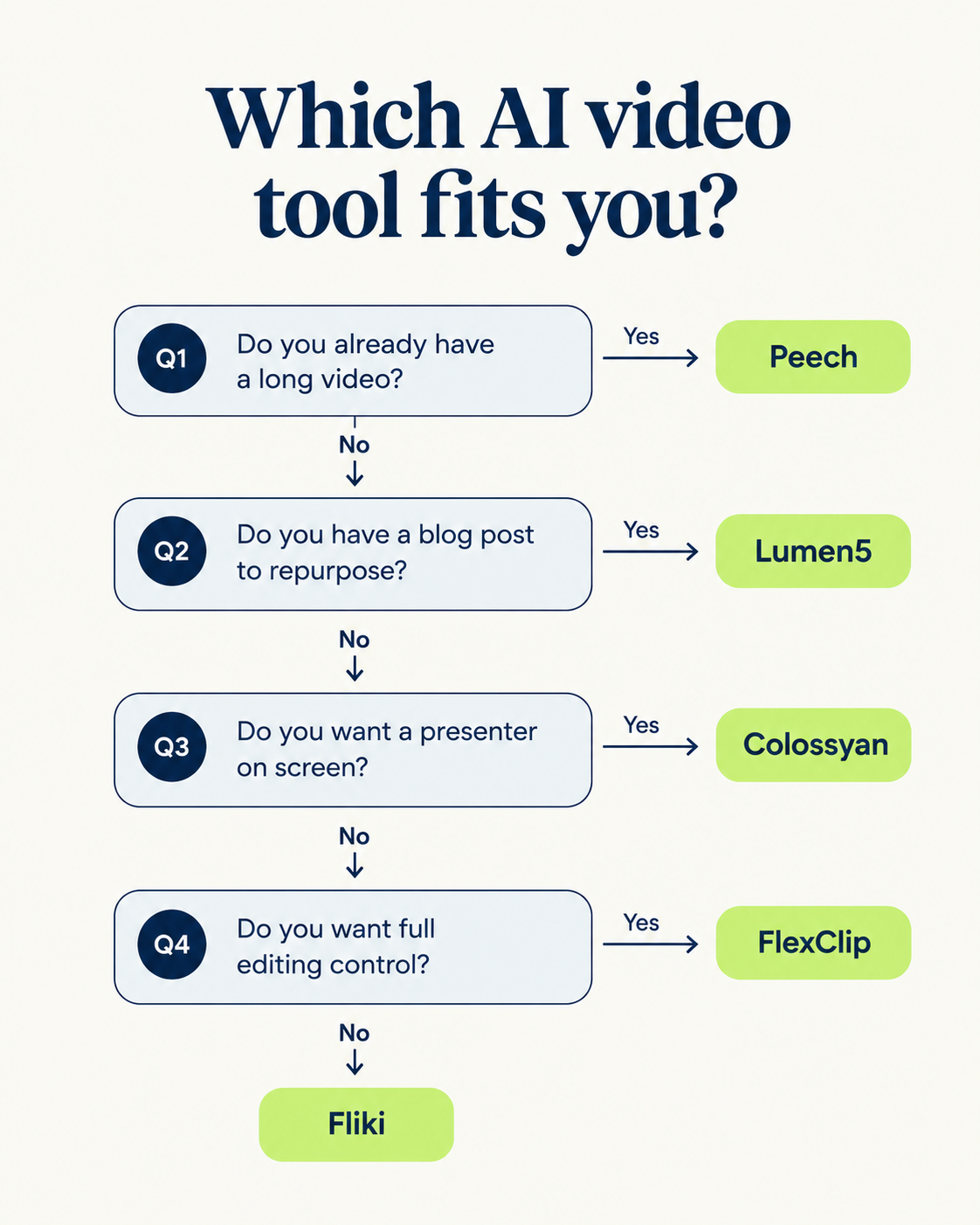
| If you want to... | Try |
|---|---|
| Turn an idea into a video fast | Fliki |
| Create presenter-led training | Colossyan |
| Cut a long video into clips | Peech |
| Edit by hand with more control | FlexClip |
| Turn a blog post into a video | Lumen5 |
Before You Make a Video: Does This Idea Need One?
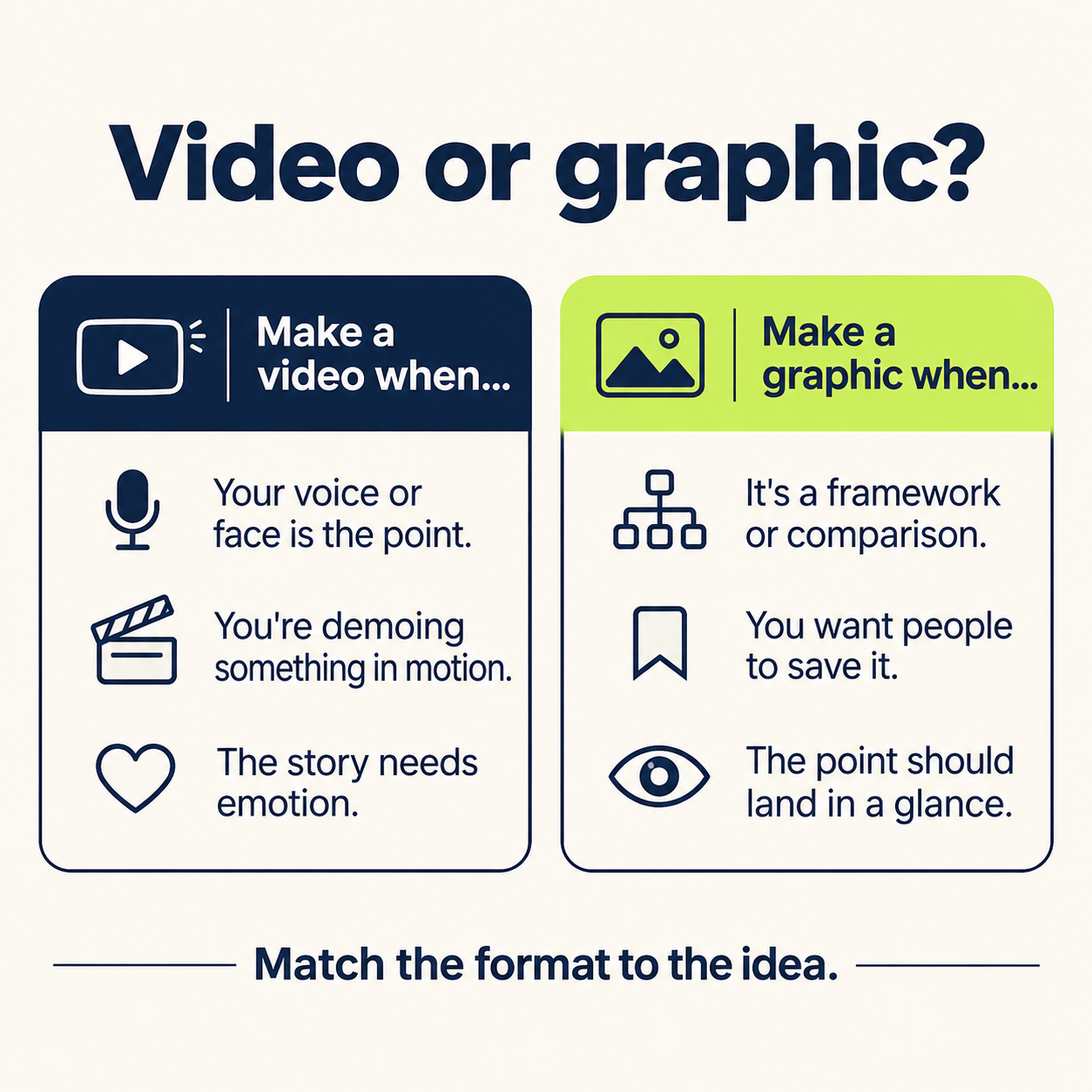
This is the question most “best video tool” lists skip. Video takes more effort to make and more attention to watch. Some ideas earn that cost, and many don’t.
Video usually wins when:
The point depends on a person, a voice or a demo.
You’re showing software in action or a process that happens over time.
Emotion or personality is the point, such as a founder story.
A graphic usually wins when:
You’re sharing a framework, comparison, stat, or step-by-step list.
You want people to save it and come back to it.
Someone should get the point in a glance, without sound or waiting.
On a feed, the second list covers a lot of the content people actually post. Frameworks and comparisons are scannable, savable, and quick to consume, which is why infographics hold up so well on LinkedIn. And a graphic takes minutes to produce, not the production steps a video does.
Using Video and Graphics Together
You don’t have to choose one. A common workflow is to build a video, then pull the key points from it into a graphic (or the reverse) and post both across the week. The same idea gets two chances to reach people in two formats.
For example, a short video explaining a process can be paired with a step-by-step infographic that people save and share. The video carries the personality, and the graphic carries the reference value.
Tips for Getting Better Results From Any AI Video Tool
Start with a tight script. The tool amplifies whatever you give it. A clear script beats a vague prompt.
Add captions and proofread them. Many people watch with sound off, and auto-captions make mistakes.
Keep it short. Cut anything that doesn’t earn its place.
Check the output shape. Match the aspect ratio to the platform before you export.
Edit the voiceover for rhythm. AI voices ignore punctuation more often than you’d expect, so listen before you publish.
Keep your branding consistent. Use the same colors, fonts and logo placement across every video and graphic.
The Takeaway
The best AI video generator is the one that matches your input and your goal: Fliki for text, Colossyan for avatars, Peech for clips, FlexClip for editing and Lumen5 for articles.
But the better first question is whether the idea needs a video. If it’s a framework, comparison or stat, a clean graphic will often get the point across faster, and in a format people can save.
That’s where Visly comes in. Describe your idea in a sentence, and Visly turns it into a polished, on-brand LinkedIn infographic in under 60 seconds, with your colors and fonts locked in. Use it alongside your video tool, and every idea has the right format.